How to connect an HP printer to Wi-Fi
Three reliable methods — the HP Smart app, the Wireless Setup Wizard on the panel, and WPS — plus what to do when the printer refuses to see your network. Works with DeskJet, ENVY, OfficeJet, Smart Tank and LaserJet models.
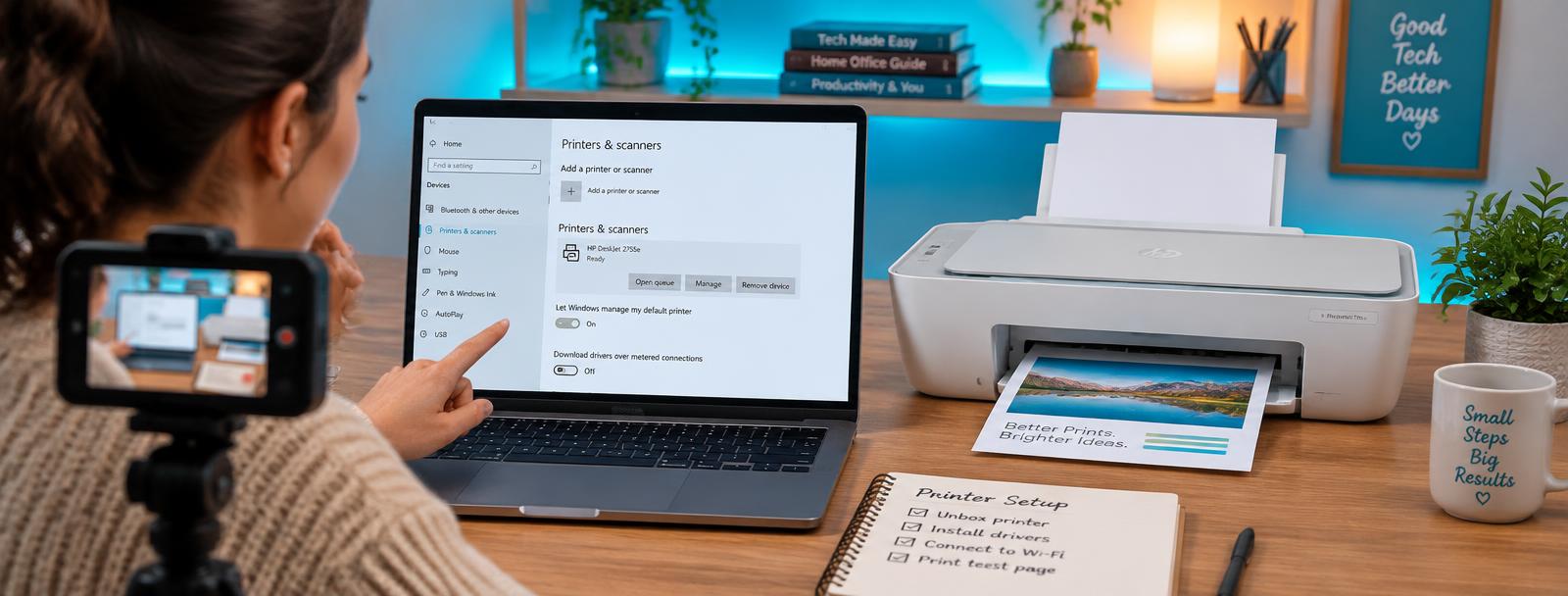 Watch the HP Wi-Fi setup walkthrough
- 1
Put the printer and your phone on the same 2.4 GHz network
Most HP DeskJet, ENVY and OfficeJet models only join 2.4 GHz Wi-Fi. If your router broadcasts one combined name, temporarily split the bands or move close to the router before you start.
- 2
Reset the printer into setup mode
On a touchscreen model open Settings → Network Setup → Restore Network Settings. On a button-only model hold the Wireless and Cancel buttons together for five seconds until the wireless light blinks blue. The blinking light means the printer is broadcasting its own setup network.
- 3
Install the HP Smart app and add the printer
Download HP Smart from the App Store, Google Play or the Microsoft Store, sign in, then tap the plus sign to add a printer. The app finds the printer in setup mode and asks for your Wi-Fi password.
- 4
Or use the Wireless Setup Wizard on the panel
On printers with a screen: Settings → Network → Wireless Setup Wizard, choose your network name and type the password with the on-screen keyboard. Passwords are case sensitive.
- 5
Or press WPS on the router
Hold the printer's Wireless button until the light blinks, then press the WPS button on your router within two minutes. The light turns solid blue when the printer joins.
- 6
Print a wireless test report
Settings → Reports → Wireless Network Test Report (or hold Wireless + Information). The report confirms the connection and shows the printer's IP address, which you'll need if you add it manually on a computer.
- 7
Add the printer on your computer
Windows: Settings → Bluetooth & devices → Printers & scanners → Add device. Mac: System Settings → Printers & Scanners → Add Printer. Pick the model showing the IP address from the test report.
Common questions
Why won't my HP printer find my Wi-Fi network?
The network is almost always on 5 GHz, hidden, or using WPA3 only. Switch the router to a 2.4 GHz band with WPA2 security, make the name visible, and retry the Wireless Setup Wizard.
The wireless light blinks and never goes solid. What now?
A blinking light means the printer is still trying to join. Restore network settings, move the printer within three metres of the router, and re-run setup with the password typed by hand rather than pasted.
My printer is connected but shows offline on my computer.
That's a computer-side problem, not Wi-Fi. Follow our printer offline guide to clear the queue, uncheck Use Printer Offline and re-add the printer by IP address.
Ask HUB AI about your HP model
HUB AI
Free printer troubleshooting assistant
Describe what your printer is doing and HUB AI will walk you to the fix.