Add a printer to a Chromebook
ChromeOS prints over the network with no drivers. The printer just needs to be on the same Wi-Fi.
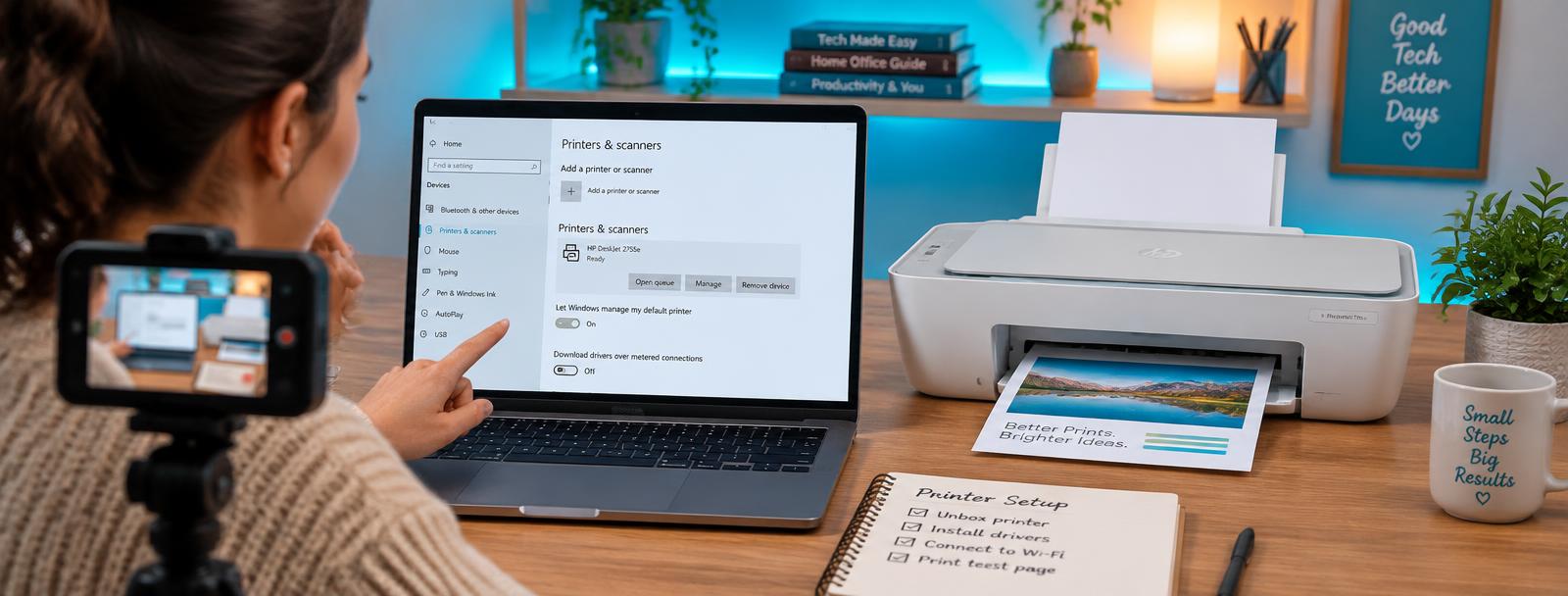
- 1
Connect the printer to Wi-Fi first
Use the printer's panel or brand app to join it to the same network as the Chromebook.
- 2
Open print settings
Settings > Advanced > Printing > Printers on the Chromebook.
- 3
Add the printer
Your printer should appear automatically. Select it and choose Add. If not, add it by IP address.
- 4
Print a test page
Press Ctrl+P in any page, pick the printer and print. No driver install is needed.
Still stuck?
Tell HUB AI your exact model and the message on the panel and it will tailor these steps to your printer.
Ask HUB AI