Printer printing very slowly: speed it up
Slow printing is usually a quality setting, a USB 1.1 port, or bidirectional status traffic — all easy fixes.
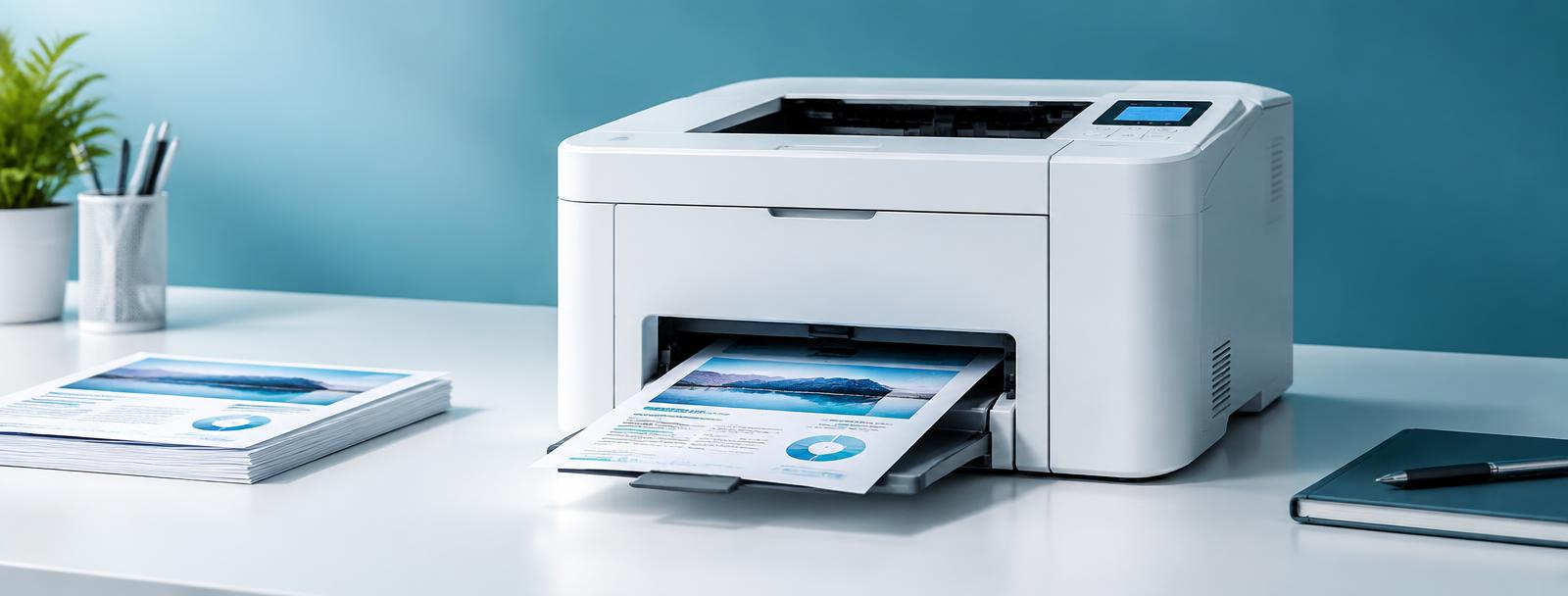
- 1
Lower the print quality
Best or Photo mode is dramatically slower. Use Normal or Draft for everyday documents.
- 2
Turn off quiet mode
Many printers have a quiet mode that halves speed. Check the panel or driver settings.
- 3
Use a proper USB port and cable
For USB, use a rear motherboard port and a cable under 2 metres. Long or unshielded cables slow data transfer.
- 4
Print directly, not via PDF preview
Some PDF viewers rasterise pages before printing. Print from the system's native dialog instead.
- 5
Update the driver
Generic class drivers print slower than the manufacturer's full driver package.
Still stuck?
Tell HUB AI your exact model and the message on the panel and it will tailor these steps to your printer.
Ask HUB AI